Building a Game Schema
Once the core schema concepts are clear, the next step is to start building the structure itself.
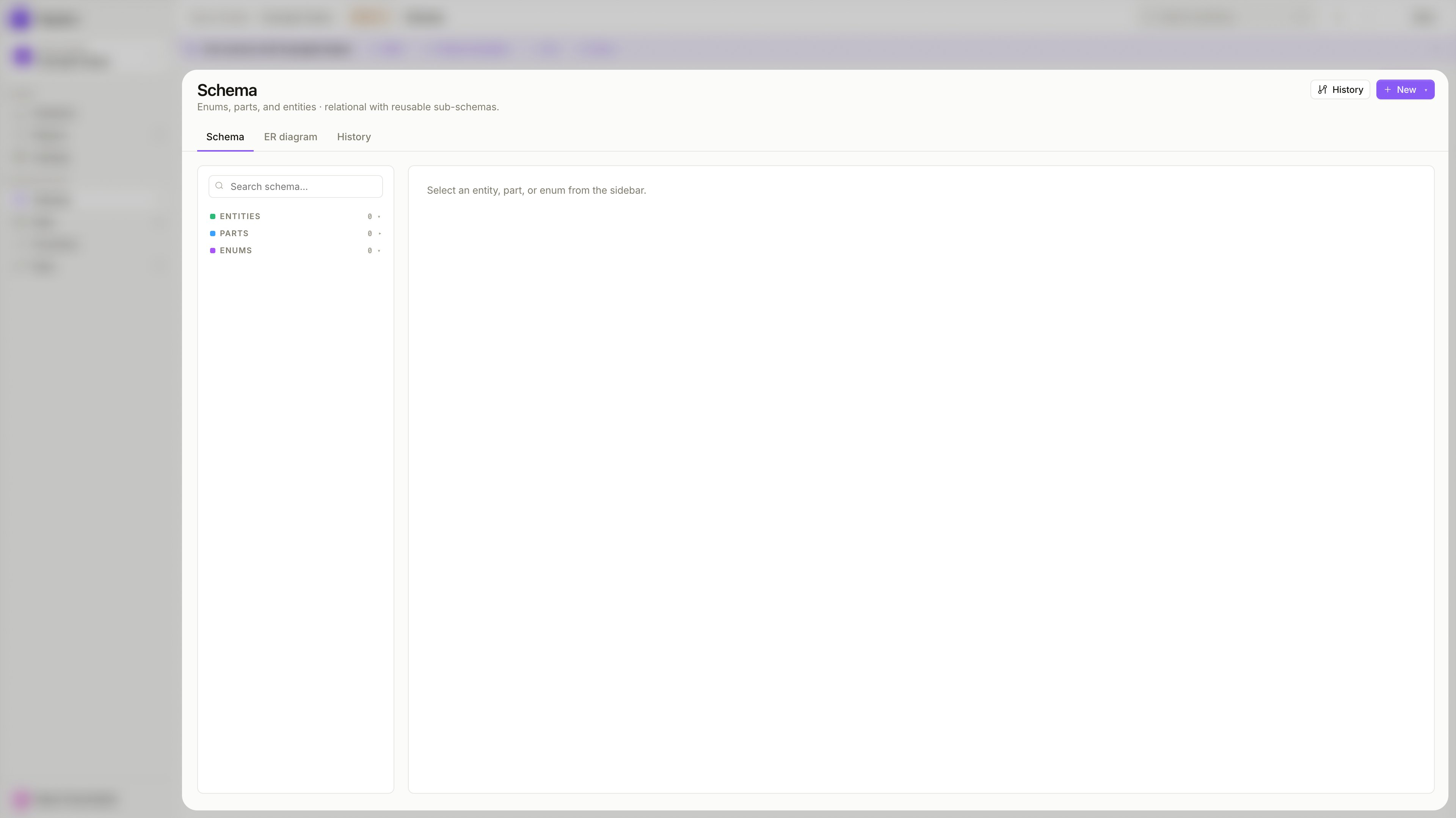
The Schema view is where all objects live — Entities, Parts, and Enums are listed in the sidebar. Selecting any object opens its fields and configuration in the main panel.
Start with the structure, not the records
Before adding any data, define the shape of the model first. A well-ordered build makes the process smoother — later objects often depend on earlier ones, and a field cannot reference or embed something that does not exist yet.
Create Enums first
Enums define the fixed value sets your fields will reference. Build them before anything else so they are available when you start adding fields to Entities and Parts.
Examples: TankStatus, WeaponType, ArenaSize.
Define Entity Parts
Entity Parts are reusable fragments of structure. Define them before the Entities that will include them, so Inclusion fields can point to them right away.
Examples: TankConf, BattleConf, ConnectionConf.
Create Entities
Entities are the top-level standalone objects with their own records. At this point Enums and Parts are already in place, so fields can reference and include them immediately.
Examples: Tanks, Leaderboards, ActiveGames.
Add fields and connect objects
With all objects created, add fields to Entities and Parts. Use Relationship fields to link Entities to other Entities, and Inclusion fields to embed Entity Parts.
Apply constraints
Once the structure is stable, tighten it with constraints — Required, Unique, min/max values, item counts. Apply them when they reflect real rules, not just to fill in options.
Keep the first version simple. It is usually easier to extend a clean schema later than to simplify an overdesigned one.
Create an Entity
Use an Entity when you need a complete standalone object with its own records.
To create one, click + New in the Schema view and select Entity. Fill in:
- Name — the object name, used throughout the schema and the Data view
- Description — optional, helps other team members understand the object's purpose
An Entity represents a real concept in your game — a player profile, a weapon configuration, a match record, or a global settings object. If the object should exist as its own record in the Data view, it belongs in Entity rather than Entity Part.
Create an Entity Part
Use an Entity Part when you want to define a reusable fragment of structure that belongs inside other objects.
Click + New and select Part. Fill in:
- Name — the part name
- Description — optional
Entity Parts are useful when the same group of fields should appear in multiple Entities, or when a large Entity should be assembled from smaller named pieces. A TankConf part with weapon and armor settings can be included in Tanks and reused anywhere else that needs the same structure.
If the object should live inside another object rather than exist on its own, it belongs in Entity Part.
Create an Enum
Use an Enum when a field should accept only one value from a predefined list.
Click + New and select Enum. Fill in:
- Name — the enum name
- Values — the list of allowed options
Enums are best used for controlled options — status values, categories, types. A TankStatus enum with Active, Destroyed, and Respawning ensures no unexpected value can ever be stored in that field.
Use Enum when the value should come from a fixed list. Use Primitive when the value should be entered directly.
Add fields to an object
Once an Entity or Entity Part exists, define its fields. Click + Add field inside the object panel.
Each field requires:
- Name — letters, digits, and underscores; must start with a letter
- Kind — what the field stores and how it connects to other objects
Choosing the right kind
- Primitive
- Enum reference
- Relationship → entity
- Inclusion ↩ part
Stores a direct scalar value. Use for most fields that hold a value directly — a name, a speed, a flag, a timestamp.
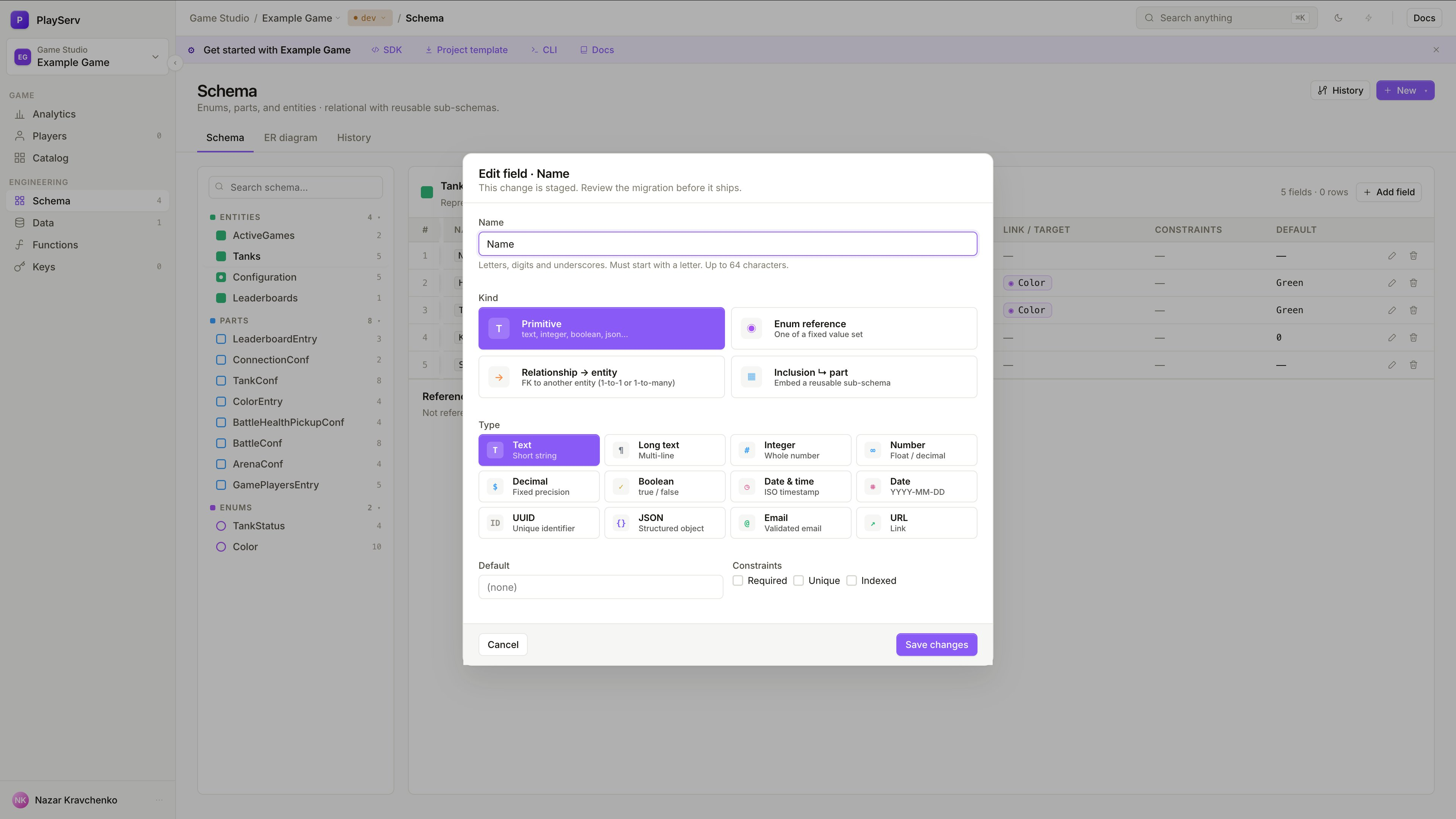
Restricts the field to one value from a predefined Enum. Use for status, category, or any field with a fixed set of options.
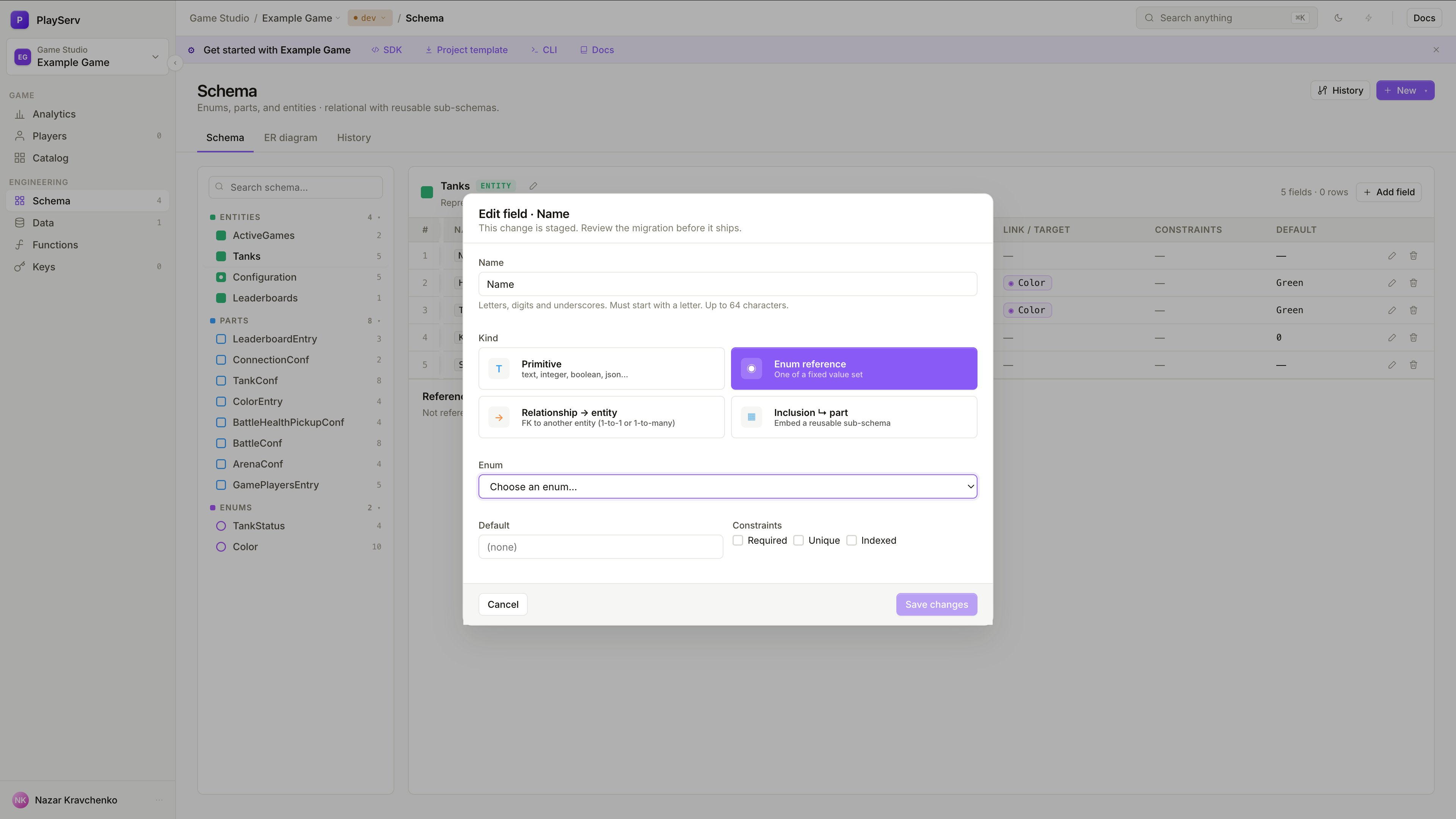
After selecting this kind, choose which Enum the field references. The field will only accept values defined in that Enum.
Creates a foreign key to another Entity. Use when the current object should point to a separate, independently existing record.
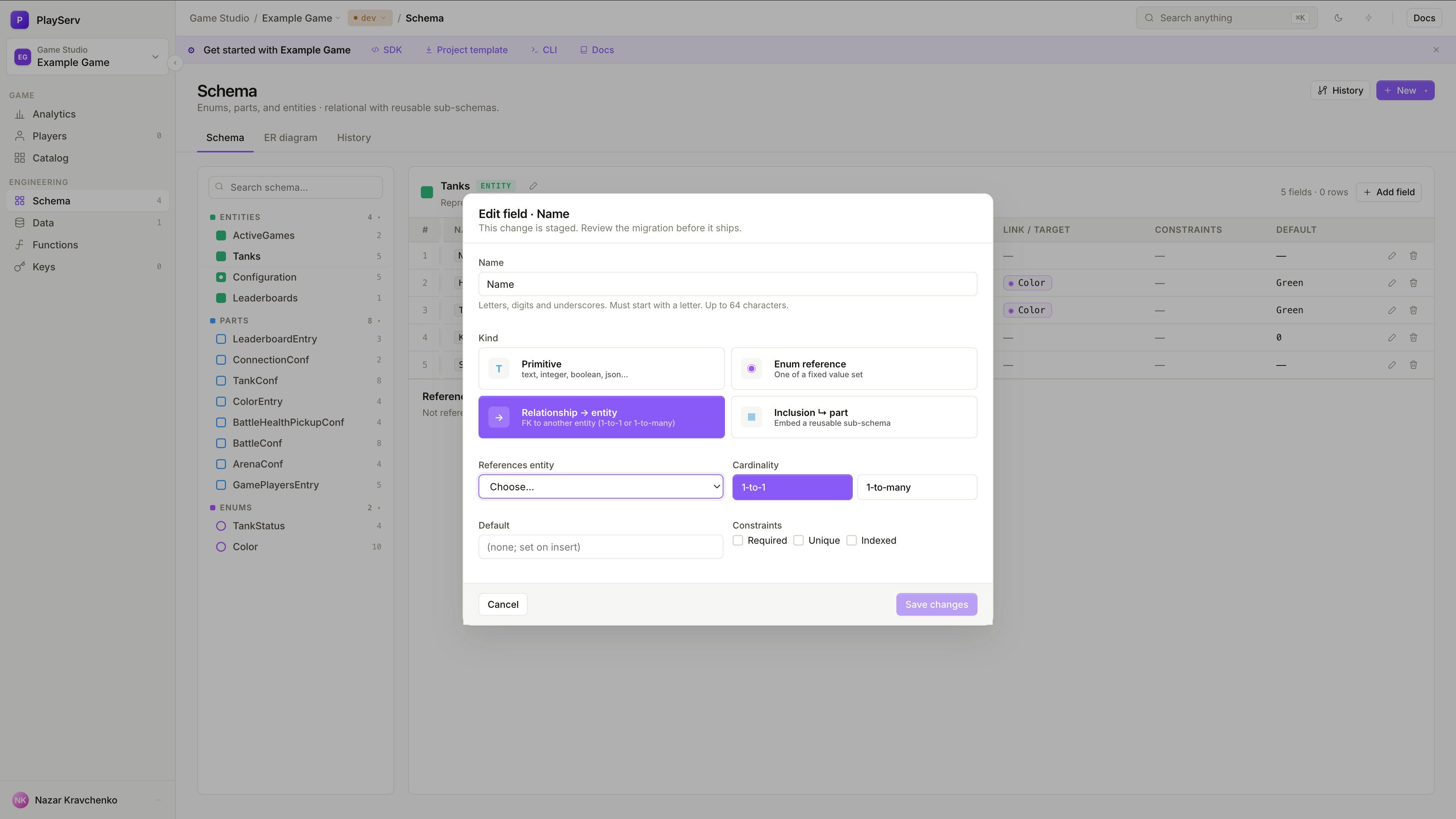
Select the target Entity and cardinality: 1-to-1 for a single link, 1-to-many for multiple. Unlike Inclusion, Relationship does not embed the target's structure — it only stores a reference to it.
Embeds an Entity Part directly into the current object. Use when the nested structure belongs to the parent and should not exist independently.
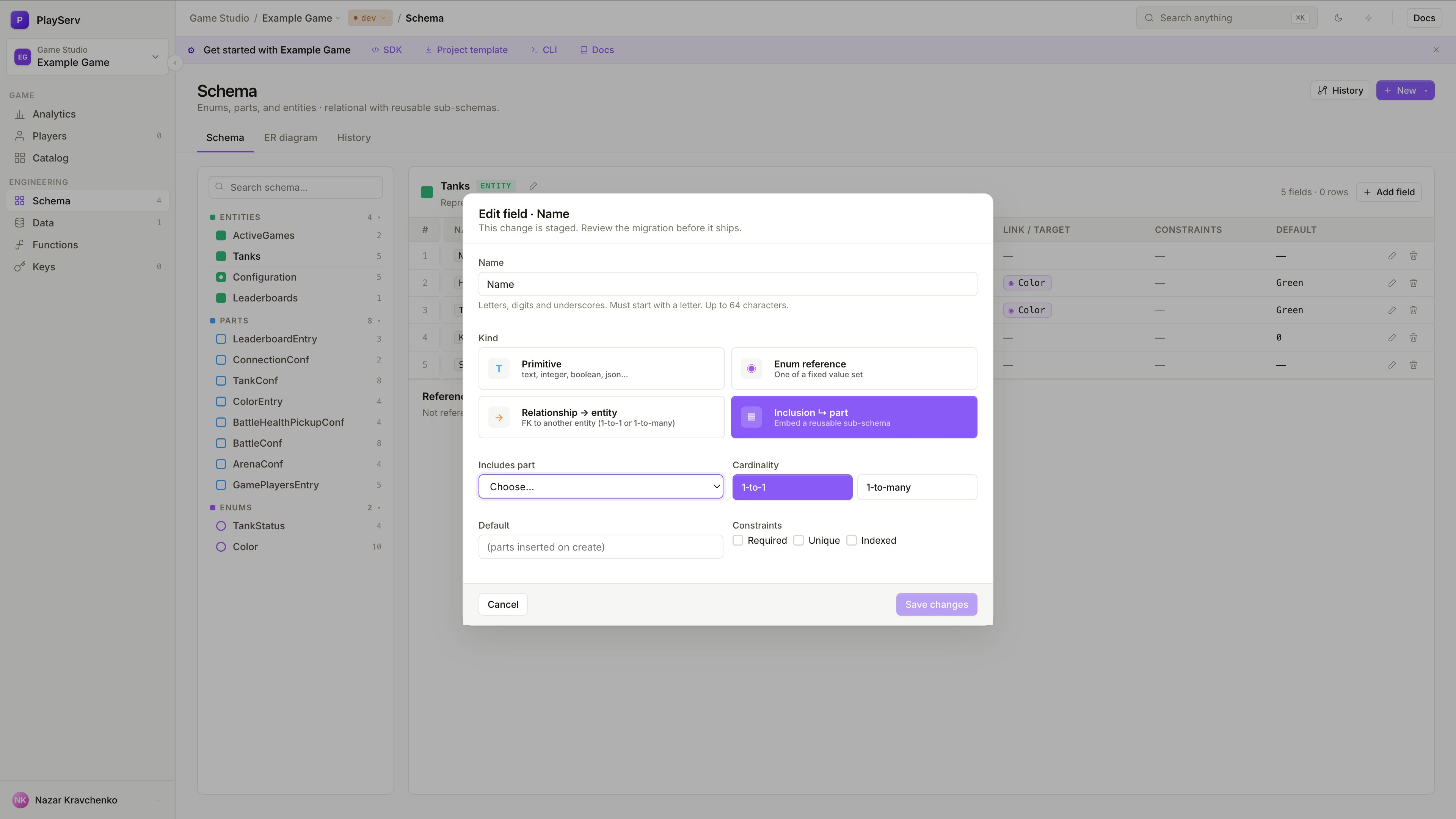
Select the target Entity Part and cardinality: 1-to-1 for a single embedded instance, 1-to-many for a list. Unlike Relationship, Inclusion inserts the part's fields directly into the parent's structure.
Use Inclusion when the structure belongs to the object. Use Relationship when the object should point to something that exists independently.
For a full reference of all types and constraints, see Schema Object Reference.
Use Singleton for unique records
If an object should have only one record, mark it as Singleton when creating or editing the Entity.
Use Singleton for global configuration objects or unique project-wide settings. A GameConfig entity that holds server-wide parameters should exist exactly once — not as a list of many records.
A regular Entity can have many records. A Singleton Entity can have exactly one. The Data view reflects this — instead of a record list, it shows a single editable form.
Build the model gradually
A good schema does not need to be complete on the first pass.
Create Enums and Entity Parts
Start with the building blocks everything else depends on. Enums define controlled value sets, Entity Parts define reusable fragments. Both need to exist before they can be referenced in fields.
Create Entities
With Enums and Parts in place, create the top-level Entities. At this point you can already add Enum reference and Inclusion fields without interruption.
Connect objects with fields
Add Relationship fields to link Entities to other Entities. Add Inclusion fields to embed Entity Parts. Build the connections once all objects exist.
Apply constraints
Once the structure is stable, tighten it — Required, Unique, min/max values, item limits. Apply constraints when they reflect real rules, not just to fill in options.
Review in the Data view
Open the Data view and create a test record. If the form is confusing or the structure feels off, the problem is usually in the schema — fix it before adding real data.
Adding complexity before the structure is clear usually leads to rework. Start minimal and extend when the need is concrete.
ER diagram
The ER diagram tab in the Schema view shows a live visual map of all objects and their connections. It is derived directly from the schema and updates automatically as you add or change objects and fields — no manual drawing required.
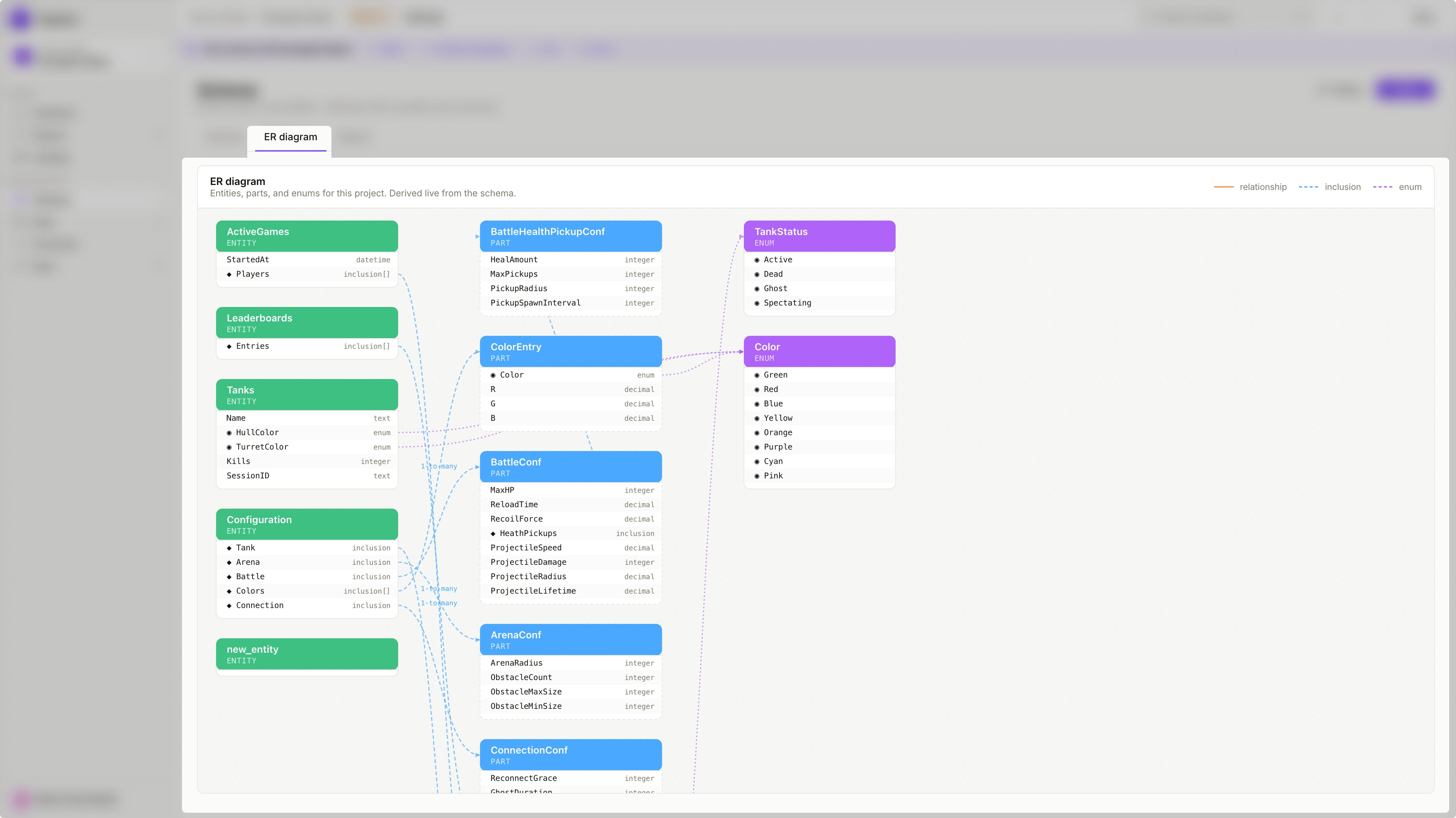
Use the ER diagram to review the overall structure at a glance, spot missing connections between objects, verify that cardinality is set correctly, or share the model with teammates who want to understand the data design without navigating each object individually.
Object types
The diagram represents all three schema object types as colour-coded nodes:
Standalone object
Top-level objects with their own records in the Data view. Referenced or included by other objects.
Reusable fragment
Structural fragments embedded inside Entities via Inclusion fields. No independent records.
Controlled value set
Fixed lists of allowed values. Connected to fields via Enum reference across the schema.
Connection types
Edges between nodes show how objects are connected. The diagram uses three line styles, matching the legend in the top-right corner of the ER diagram tab:
Edges are labelled with cardinality where applicable — 1-to-many appears on Relationship and Inclusion connections that use that setting.
Common design mistakes
Using Relationship when Inclusion is the right choice — if the nested structure belongs to the parent and has no independent lifecycle, embed it with Inclusion rather than linking it with Relationship.
Using Inclusion when Relationship is the right choice — if the linked object exists independently and can be referenced from multiple places, use Relationship rather than embedding a copy.
Defining large flat Entities instead of composing from Parts — when several Entities share the same group of fields, extract that group into an Entity Part and include it instead of duplicating fields manually.
Do not add complexity just because the editor allows it. Relationship, Inclusion, and Entity Parts are useful only when they reflect the real structure of the project.
Next steps
Once the schema structure is in place, work with the records created from it.
If you prefer to build or extend the schema through an AI assistant rather than manually, the Backoffice MCP integration lets you connect Claude and describe the schema in natural language. The assistant can create Entities, Parts, Enums, and fields directly — and can generate a full schema from a Game Design Document in one pass.