Publishing and Reviewing Changes
Every change to the schema goes through a migration before it becomes active. This gives you a chance to review exactly what is about to change — and what impact it will have — before applying it.
How migrations work
When you edit the schema — add a field, update an Enum, change a constraint — the Backoffice stages the change as a pending migration. The change does not take effect until you review and apply it.
Each migration includes a Changes summary showing what will be added, removed, or modified, and an Impact assessment indicating whether the change is backward compatible and how many rows will be affected.
This separation between editing and applying keeps the schema safe: you can make multiple edits, review them together, and apply only when you are confident the result is correct.
Review migration
When there are staged changes, the Review migration button appears in the top right of the Schema view. Click it to open the migration dialog.
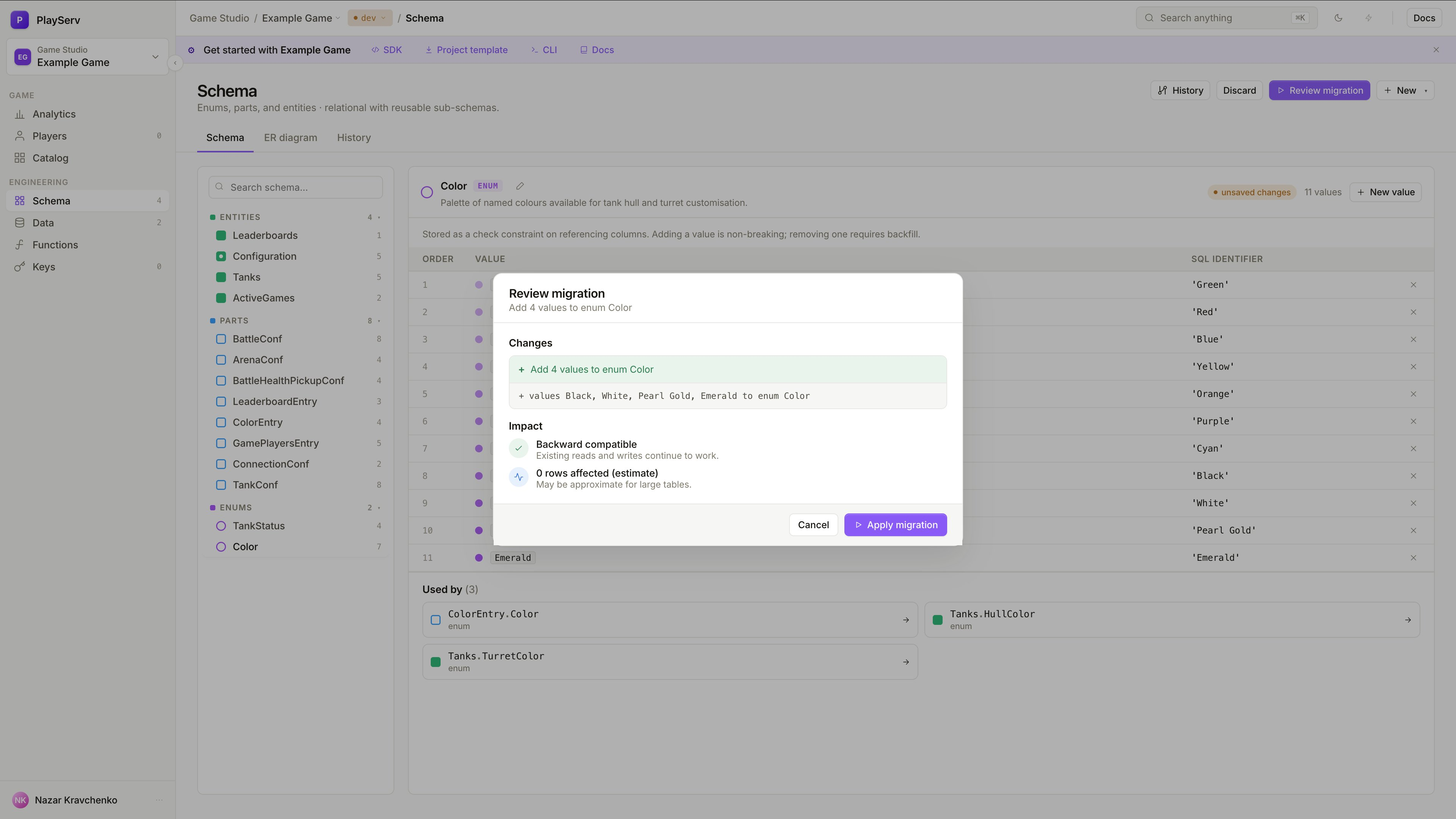
The dialog shows two sections.
Changes lists every modification that will be applied — new values, dropped values, added fields, updated constraints. Each change is shown as a diff line so you can see exactly what is being added or removed.
Impact tells you whether the migration is safe to apply. A Backward compatible label means existing reads and writes continue to work without any changes on the client side. The rows affected estimate tells you how many existing records will be touched — useful for catching unexpectedly broad changes before they are applied.
If the migration looks correct, click Apply migration. If something is wrong, click Cancel and continue editing — the staged changes remain until you are ready.
Removing an Enum value that is already used in existing records is a destructive change. Review the rows affected estimate carefully before applying removals.
Schema changes that need extra attention
Not all schema changes carry the same risk. Adding a new field, a new Enum value, or a new Entity is always backward compatible — existing records are unaffected and the change can be applied freely.
Removals and modifications need more care. Removing an Enum value, tightening a constraint, or changing a field type may affect existing records or break existing queries. Before applying these, check the Impact section in the dialog and review the Used by section at the bottom of the object panel — it shows which other objects reference the one you are changing.
The more central an object is in the schema, the more carefully its changes should be reviewed. An Enum used across a dozen fields deserves more scrutiny than a field on a rarely used Entity.
History
The History tab in the Schema view is a full log of every migration that has shipped — newest first.
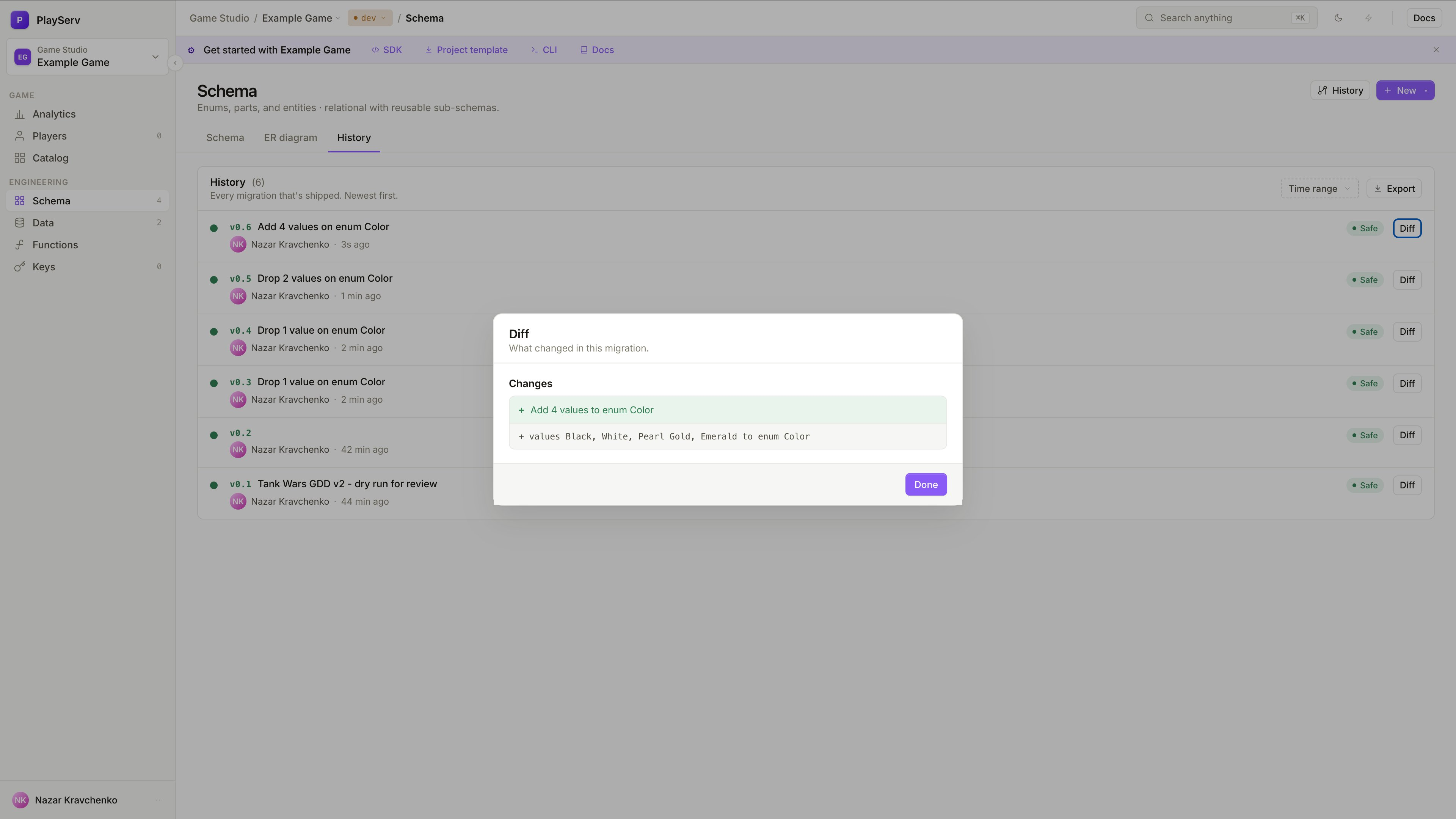
Each entry shows the version number, a description of what changed, who applied it, and when. Click Diff on any entry to open a breakdown of exactly what changed in that migration — the same format as the Review migration dialog.
Use History to confirm that a migration was applied correctly, trace when a specific change was introduced, or understand how the schema evolved over time. The log can be filtered by time range and exported.
What to check before applying
The most common mistake is applying a migration without reading the diff. The diff is short — it takes seconds to read and prevents the kind of errors that take much longer to fix after the fact.
Before clicking Apply migration, verify that the change description matches what you intended, that the Impact section shows Backward compatible, and that the rows affected estimate makes sense for the change you made. A large number of affected rows on what seemed like a small edit is usually a sign that something broader changed than expected.
Next steps
- Schema Object Reference — definitions of all schema concepts
- Building a Game Schema — how to create and connect schema objects
- Working with Game Data — creating and editing records