Functions
Last updated: 16 July 2026
Your game's server-side logic — running globally, scaling automatically. Write in TypeScript, JavaScript, Python, or Go, and deploy with the PlayServ CLI — no infrastructure to manage.
The Functions section lives under Engineering in the project sidebar. Five tabs give you everything: Overview, Functions, Bindings, Logs, and History.
Functions are created and deployed with the PlayServ CLI, run from your local project. Once a deploy finishes, the function shows up across the tabs below with live status, metrics, and logs.
Overview
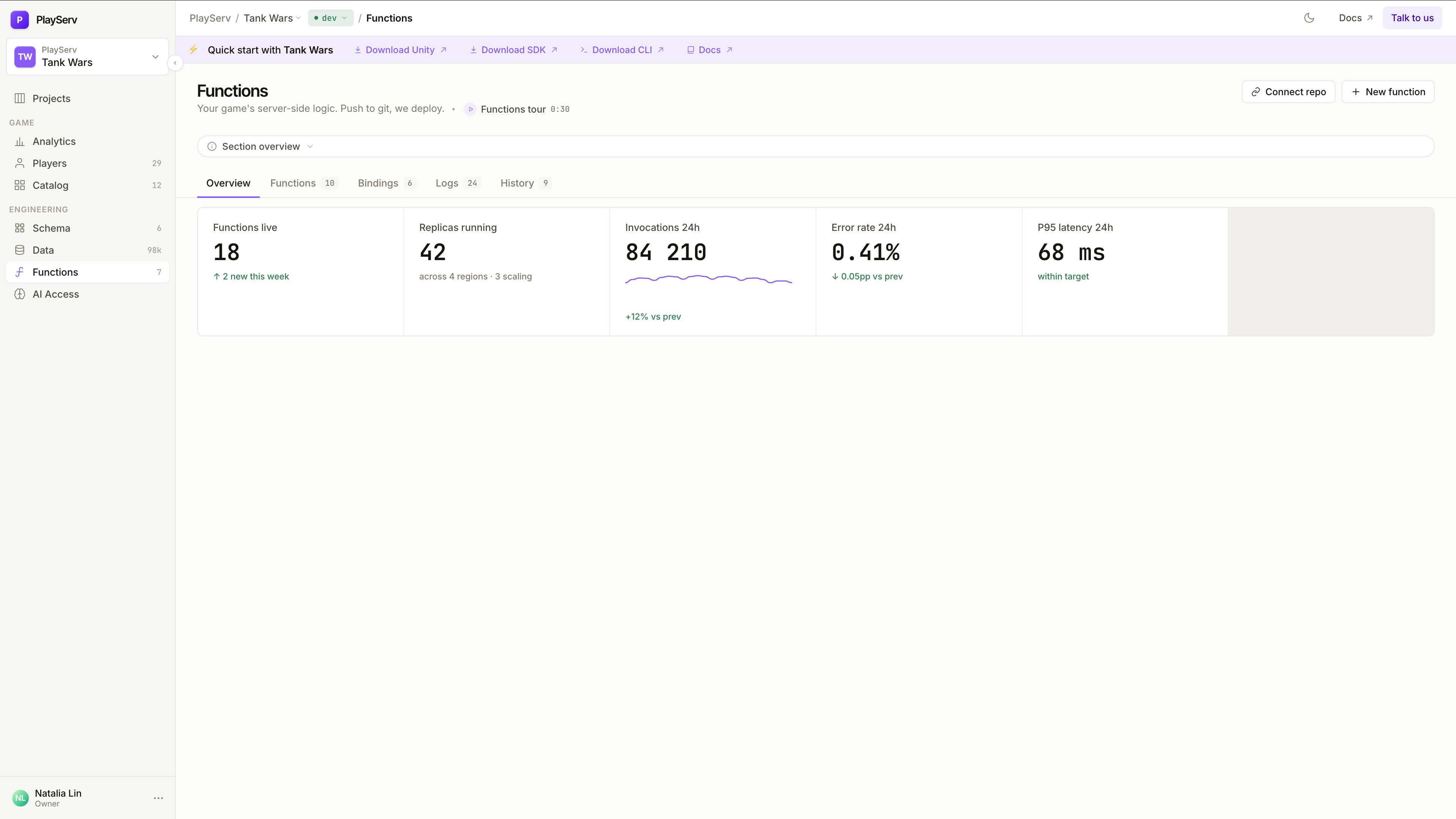
A live health dashboard across all your functions in the current environment.
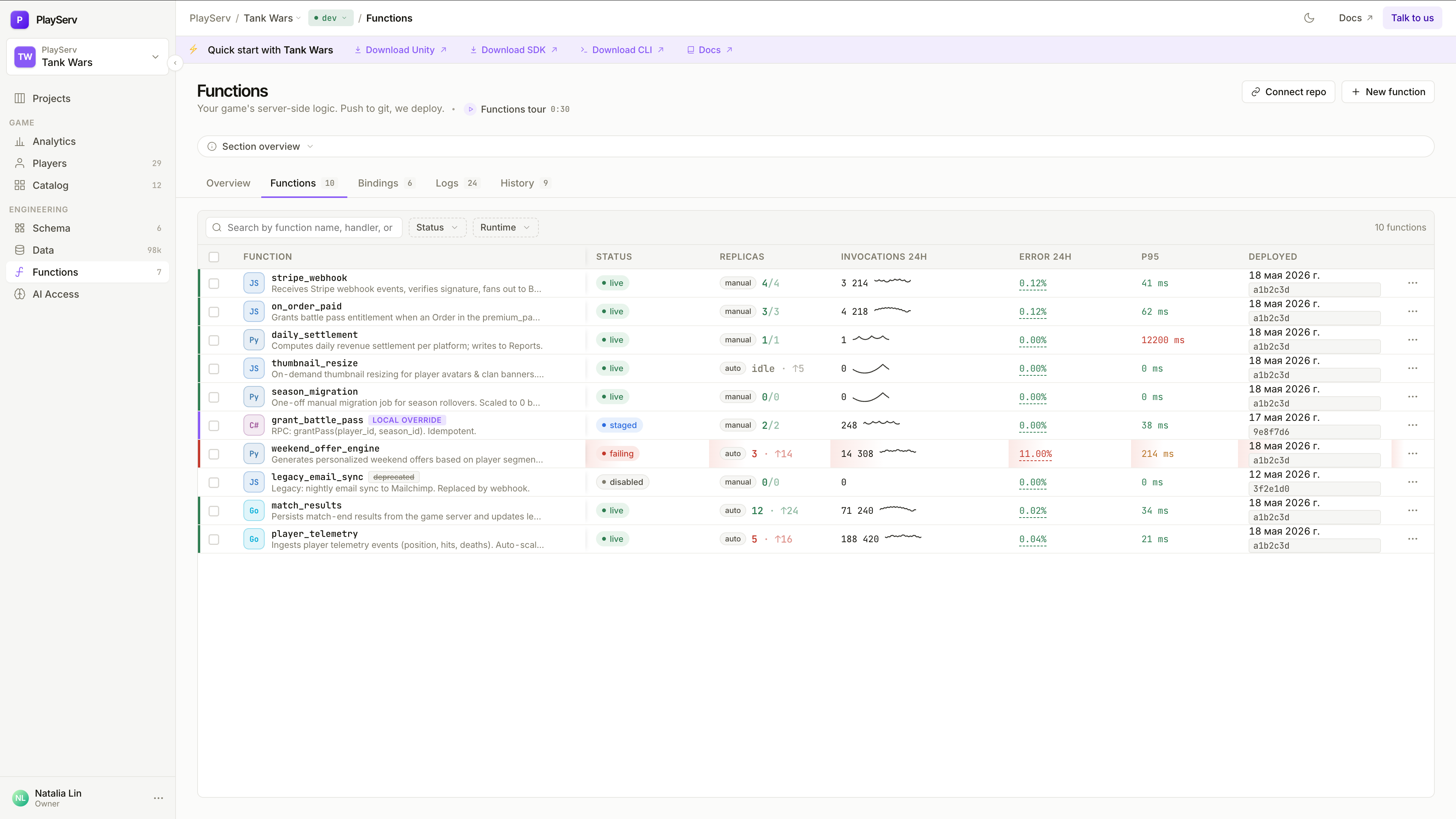
Functions list
Every function in the project, in one table.
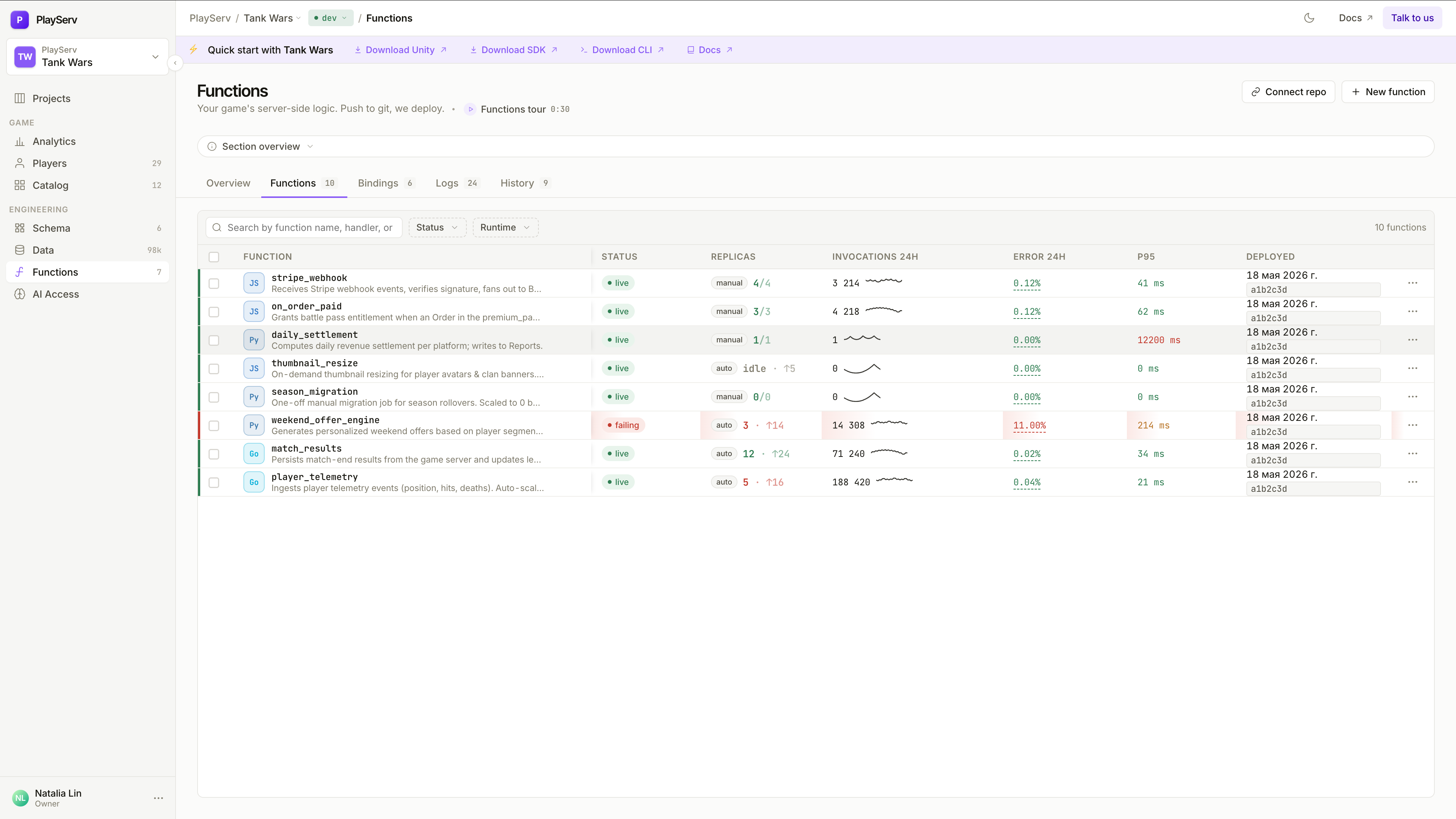
Search by name, description, or language. Use Status and Runtime dropdowns to filter — useful in larger projects where you only need to see, say, failing Python functions.
Each row surfaces what matters at a glance:
Language badge (Js, Py, Go, C#), function name, and a one-line description from the manifest.
Status badge, replica count (running / desired), invocations for the current and previous 24h period, error rate, P95 latency, and the deployed date with commit SHA.
Statuses
Deployed and actively serving traffic. The normal healthy state.
Deployed but not receiving traffic. Use for canary testing before promoting to live.
Replicas are crashing or errors exceed the configured threshold. Needs attention.
Manually stopped. All replicas are down; the function won't accept invocations.
Click + New function in the top-right to scaffold a new function from a template. This is a coming soon feature — use the CLI to create new functions.
Function detail panel
Click any row to open the detail panel on the right. The header shows the function name, scaling policy, last deploy date with commit SHA, and live status. Four tabs give you full control.
Status
Live health for a single function. Three stat areas at the top:
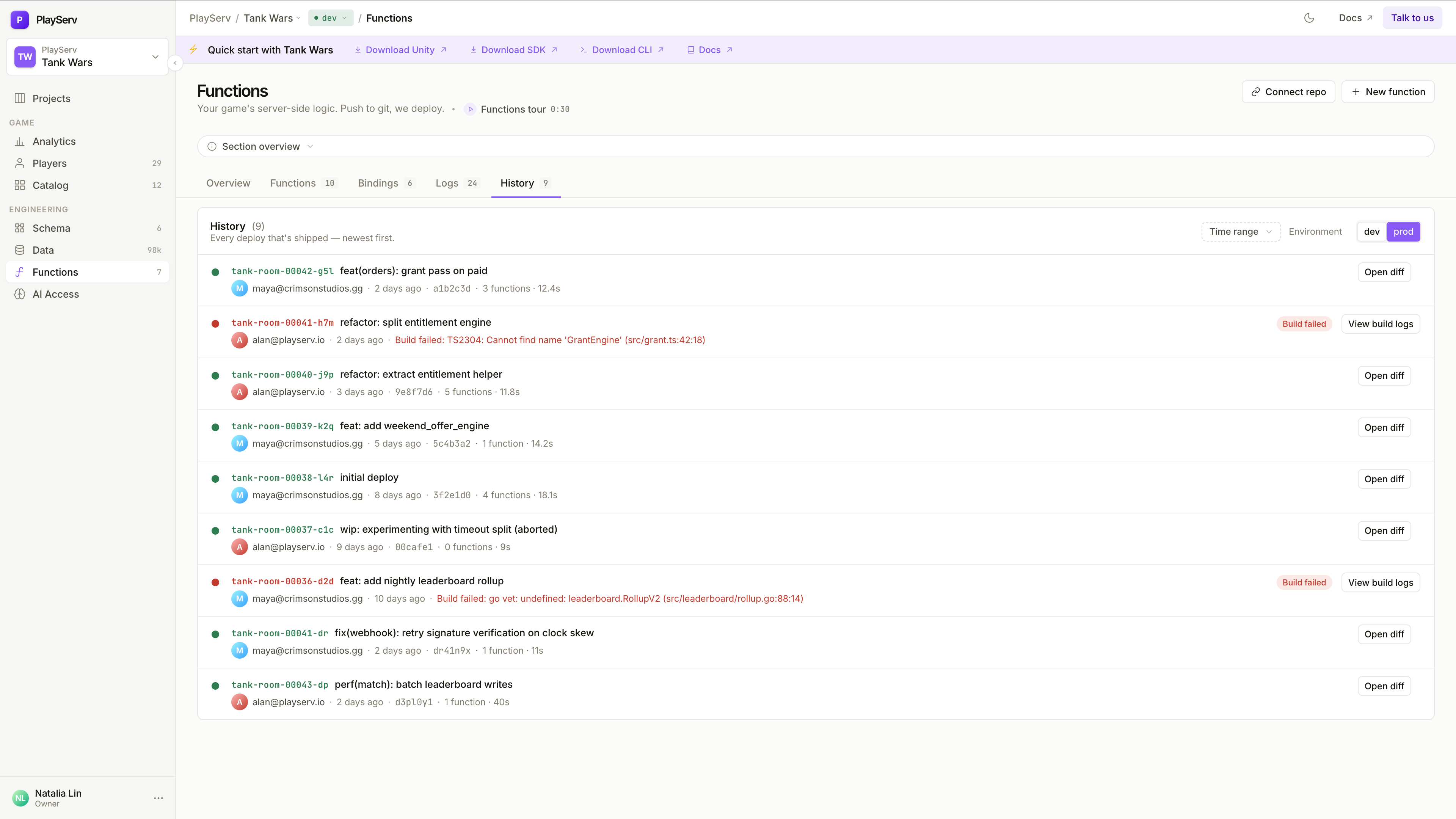
none for public endpoints, or player for protected ones.Replicas lists every active instance with ID, region, uptime, memory, and CPU. Click Scale to adjust replica count immediately — no redeploy. Click any replica row to expand At a glance:
(current)— if noneBindings
All configuration injected into this function at runtime. Two sections.
Env vars — the full variable table:
LOG_LEVEL, NODE_ENVmanifest — declared in platform.jsonautofixOverrides apply immediately and restart replicas — no redeploy needed. Manifest defaults are read-only here.
Secrets — credentials linked to this function:
STRIPE_WEBHOOK_SECRET, DATABASE_URLlinked when resolved; missing when the secret hasn't been setClick Rotate to generate a new value. Click Open project Bindings → to manage the full set of project-level secrets.
Settings
Runtime behaviour for this function. Saved independently — no code redeploy required.
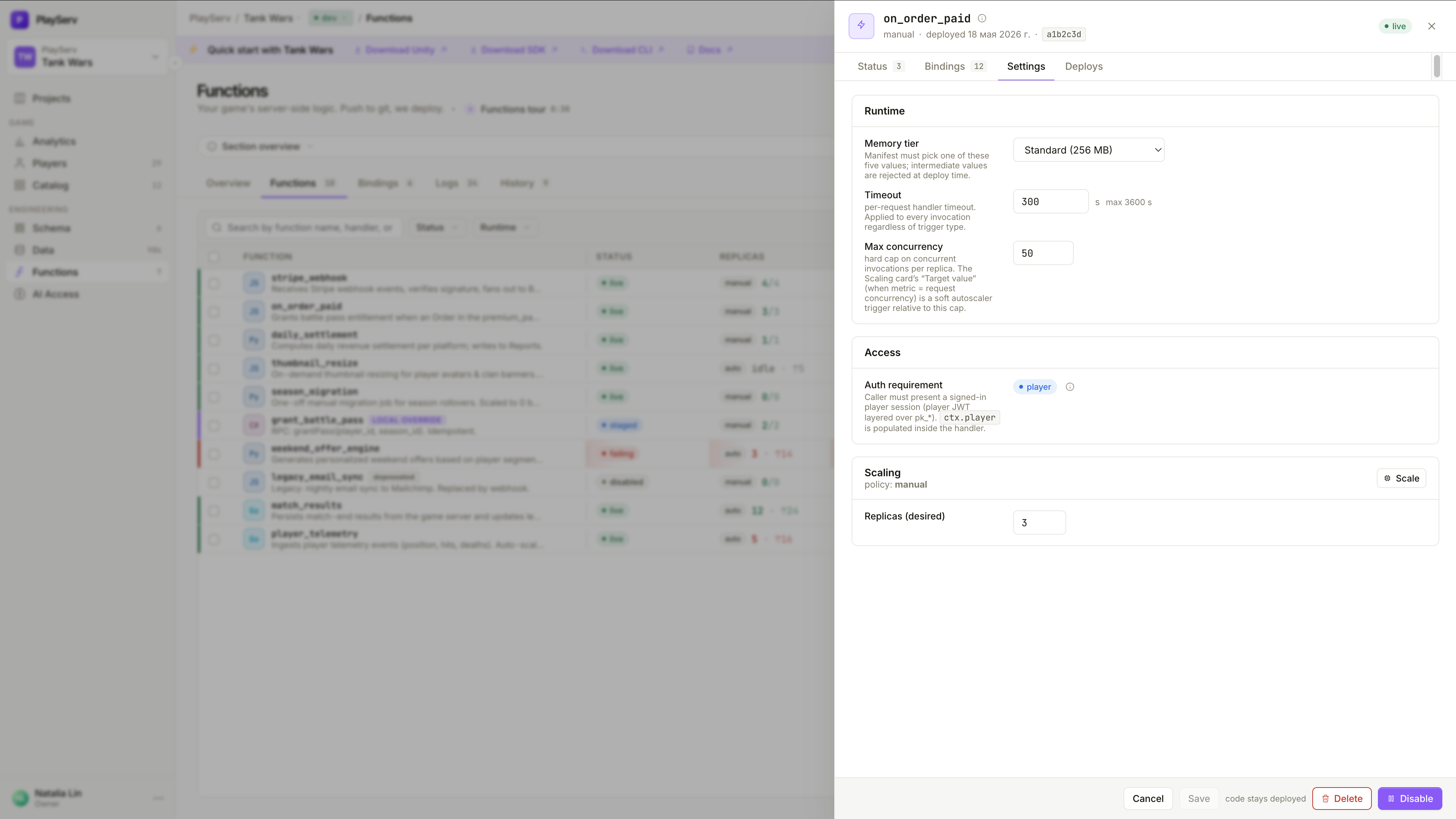
auto and the metric is request concurrency, the Scaling card's Target value acts as the soft autoscale trigger relative to this cap.none — anonymous callers allowed; good for public webhooks and open endpoints. player — caller must present a signed-in player session (a player JWT layered over the project's pk_* key); PlayServ populates ctx.player inside the handler.manual — you control the replica count. auto — the platform scales based on request concurrency relative to Max concurrency.manual. Click Scale to apply immediately.Deploys
The full deploy history for this specific function — every build that has touched it, newest first.
live · draining (traffic shifting to newer version) · archivedsucceeded, or Build failed with a link to build logslocked for the live and draining deploys; delete icon for archived onesA deploy enters draining while in-flight requests from the previous version finish before traffic fully switches.
The Deploys panel is read-only. The source-of-truth for all deploys is your CLI — you can't trigger or roll back from here.
Function versions
By default every deploy replaces the untagged latest, which serves 100% of traffic. To run a second addressable version of the same function side by side — for canary testing or a pinned client — deploy it under a version tag:
playserv-cli deploy --tag ver2
A tagged deploy gets its own addressable URL and takes no default traffic — the untagged latest keeps serving every normal call. Re-deploying the same tag re-points it in place (last write wins); different tags never supersede one another.
Invoke a specific version by sending its tag in a header on the /fn/{slug} call:
X-Playserv-Function-Version: ver2
If no version header is sent, the call goes to latest. If the header names a tag that isn't live, the call fails with function_version_not_found — there is no silent fallback to latest. From another function, the SDK selects a version with target_version on the call instead of the header.
A version tag is 3–22 characters, lowercase letters, digits and dashes, and must start with a letter — for example ver2 or v2-canary. v1 is one character too short to be a legal tag.
Promoting a deploy from dev to prod carries its tag: a tagged source arrives in prod under the same tag with no traffic shift (reachable via the same header); an untagged source becomes prod's new latest.
Automatic deploys by branch
A project can bind a git branch to an environment so that a push to that branch deploys into the mapped environment automatically — for example main → prod, develop → dev. Once a binding exists, a merge to the branch triggers a deploy without a manual CLI step; the resulting build shows in the Deploys and History views with its branch and commit, exactly like a CLI deploy.
Branch bindings are managed per project (list, create, update, remove) and each maps one branch to one target environment. A branch with no binding simply doesn't auto-deploy — pushes to it are ignored by the deploy pipeline until you add one.
Auto-deploy and manual CLI deploys are the same pipeline underneath — a branch binding just decides which environment an automated build lands in. Version tags and promotion behave identically whether the deploy was triggered by a push or by the CLI.
Bindings tab
The Bindings tab at the top of the Functions section is a project-wide view — every env var across every function in one flat table, with the same columns as the per-function view.
Logs
A real-time, cross-function log stream for the entire environment.
The left panel lists all functions with their unread count. Click to filter; use checkboxes to select multiple. Mark all / Unmark all toggles the full selection.
Each entry: timestamp to milliseconds, level badge (INFO blue · WARN amber · ERROR red), function name, and message. Traced calls show a trace: <id> suffix — all lines from the same invocation share that ID.
Stream controls:
Filter to one function and enable Live while debugging — you'll see output in real time as you trigger invocations.
History
Every deploy that has touched any function in the project — the full project-wide deploy log. Sorted newest first.
Each entry shows a status dot (green = success, red = failed), the git revision with branch and short commit SHA, commit message, author, relative time, number of functions changed, and build duration. Failed builds show a Build failed badge with a View build logs link.
Use Time range and Environment dropdowns to filter.
History includes every shaped deploy — including failed builds and zero-function pushes. Use the Environment filter to separate dev and prod histories.
Next steps
- RPC & Server-side Game Logic — server-side game logic that runs inside the SDK runtime, a different model from standalone Functions
- API Key Management — the keys and secrets that back function bindings