Managing Players
Last updated: 16 July 2026
The Players page is where you view, search, and manage every player account in a project — sign-in providers, active sessions, moderation status, and lifecycle events all live here.
To open it: navigate to Players in the project sidebar.
The page has three tabs: Players, SSO & Auth, and History.
Players tab
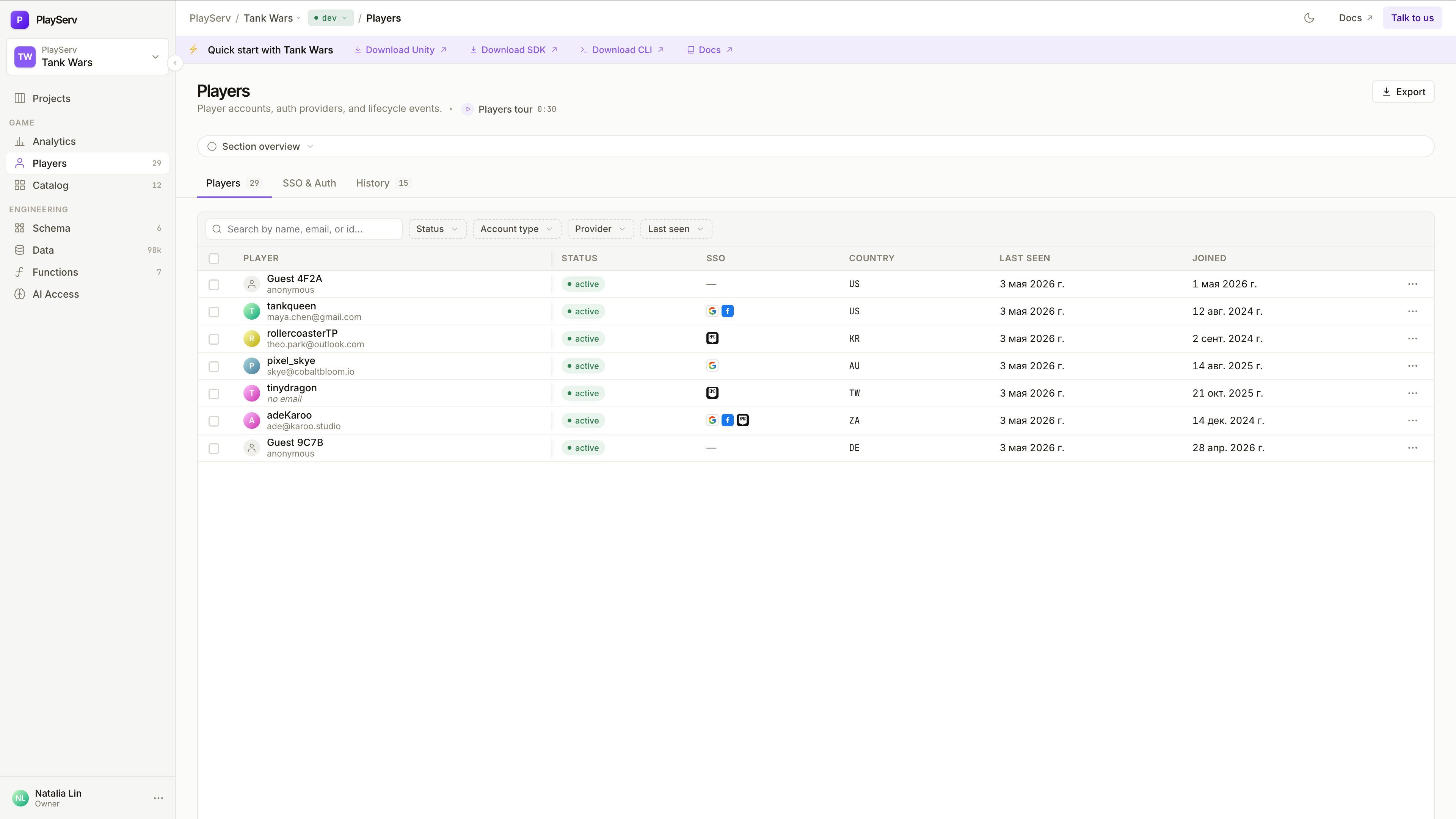
Lists every player account in the project.
Use the search bar to find a player by name, email, or ID, or narrow the list with the Status, Account type, Provider, and Last seen filters.
| Column | Description |
|---|---|
| Player | Display name and email. Guest accounts show anonymous instead of an email. |
| Status | active, suspended, or banned. |
| SSO | Icons for each linked provider. Guest accounts show —. |
| Country | Resolved from the player's last known IP. |
| Last seen | Timestamp of the player's most recent activity. |
| Joined | When the account was created. |
Click any row to open the player detail panel.
Player detail panel
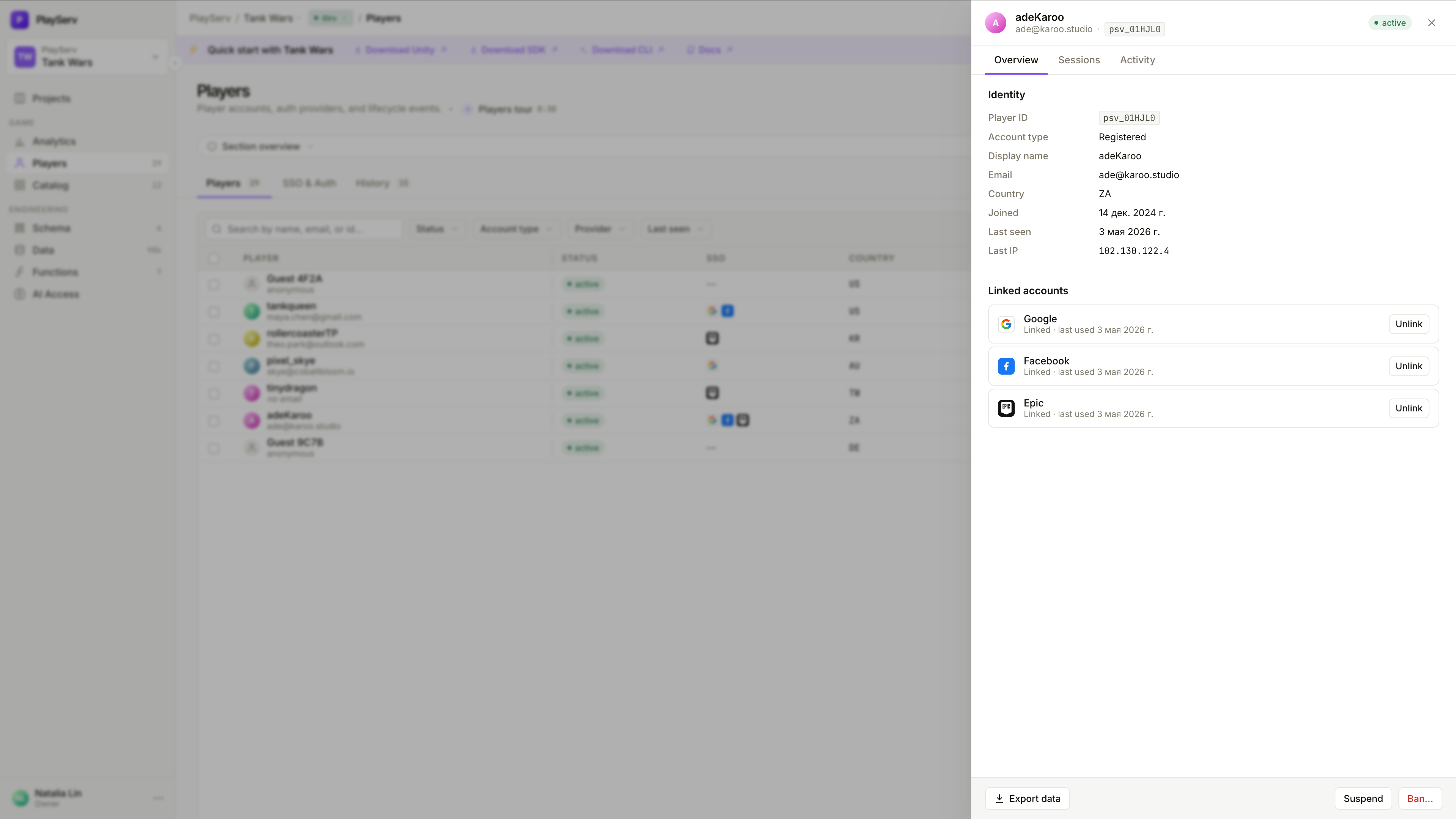
Opens as a side panel over the player list. The header shows the player's display name, email or anonymous, Player ID, and current status.
- Overview
- Sessions
- Activity
Identity — Player ID, account type, display name, email, country, join date, last seen, and last IP.
Linked accounts — every SSO provider the player has connected, with an Unlink button for each.
Every active session across the player's devices, with location, IP, and expiry. Use Revoke to sign out a single device, or Revoke all to sign the player out everywhere. Revoking does not block future sign-ins — the player can sign in again immediately.
A chronological log of events tied to this specific player — sign-ins, exports, moderation actions, and similar. Each entry shows a category badge and timestamp.
Moderation: suspend and ban
Suspend and Ban... sit at the bottom of the player detail panel, outside the Overview / Sessions / Activity tabs — they're always visible and act on the player regardless of which tab is currently open.
Suspending a player
Suspending is reversible. Use it while an issue is under review.
Click Suspend
At the bottom of the player detail panel, click Suspend. Optionally enter a reason — it isn't required.
Confirm
Click Suspend in the confirmation dialog. The player is signed out immediately and blocked from signing in. Progress and purchases are preserved, and you can restore the player at any time.
Banning a player
Banning is permanent and blocks the device, not just the account.
The device identifier, fingerprint, and IP are recorded with the ban. If the player reinstalls or signs up for a new account on the same device, the ban still applies.
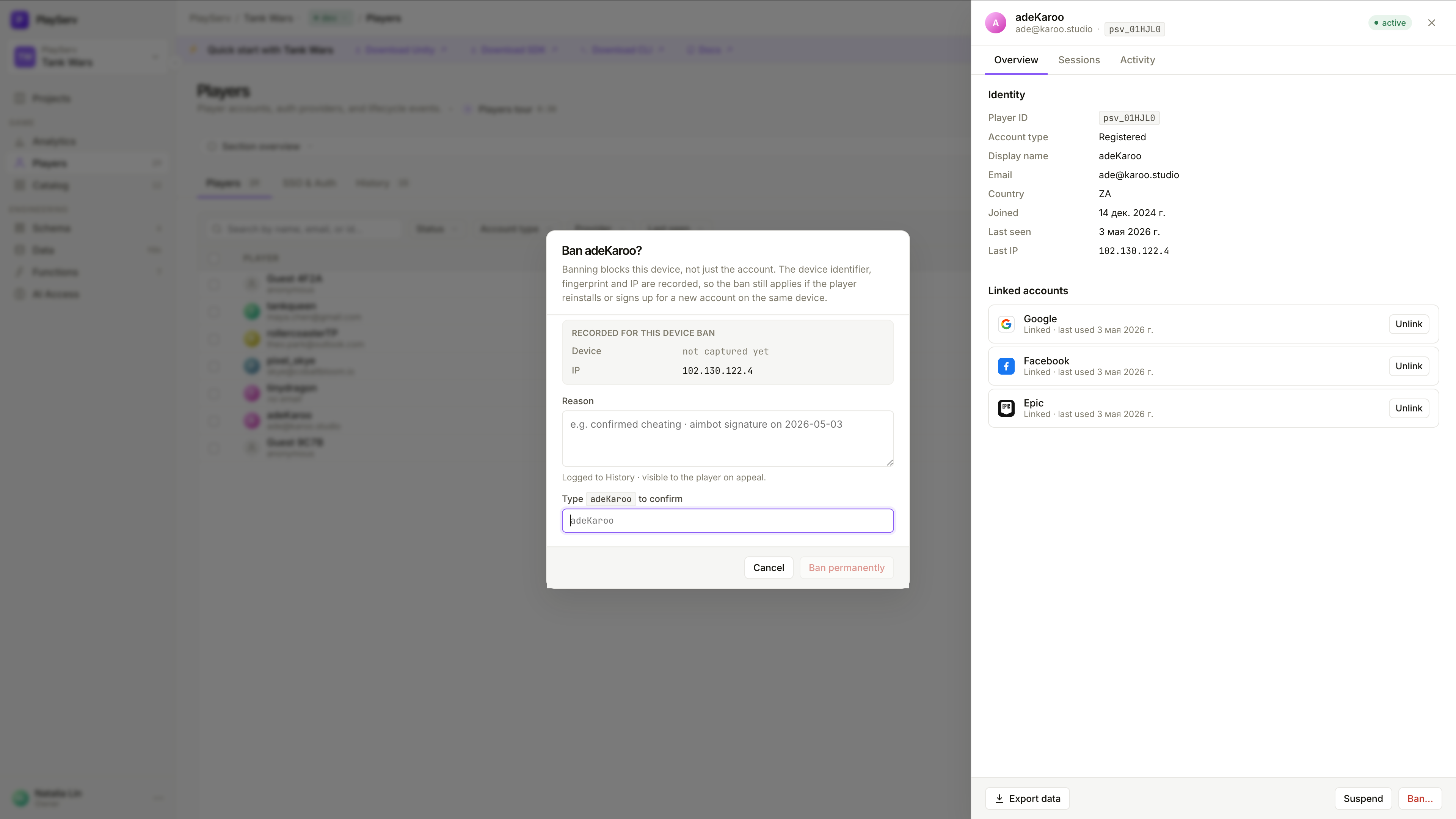
Click Ban
At the bottom of the player detail panel, click Ban.... Enter a reason — this is required and is visible to the player on appeal.
Type the player's name to confirm
Type the player's display name exactly as shown, then click Ban permanently. This action cannot be undone.
History tab
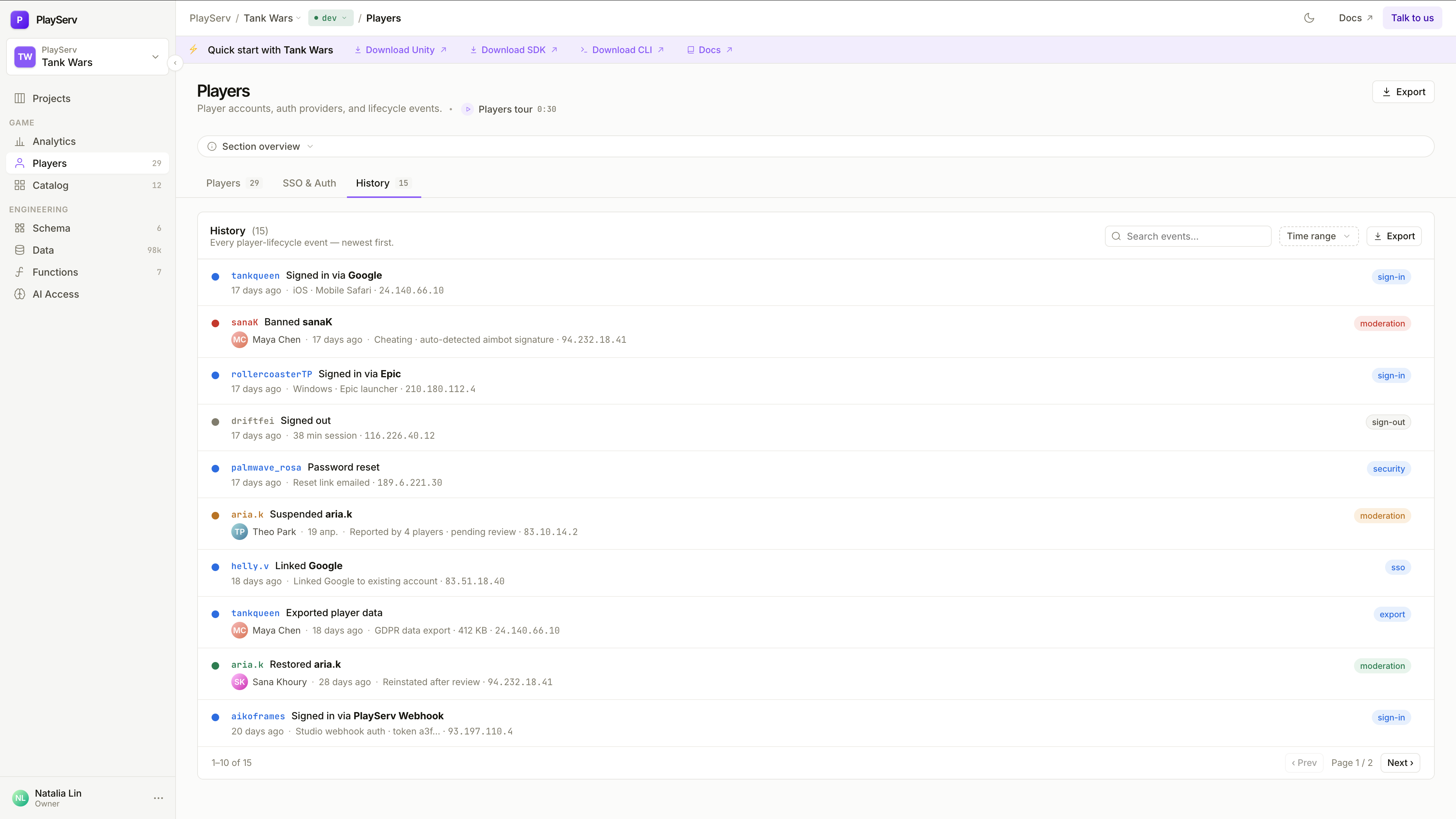
Every player-lifecycle event across the project, newest first — sign-ins, sign-outs, moderation actions, SSO linking, security events, and data exports.
Use the search bar to find a specific event, or the Time range filter to narrow the window. Player names in the list are links — click one to jump straight to that player's detail panel.
Use Export to download the full event log.
SSO & Auth
The SSO & Auth tab controls which authentication providers players can use to sign in — Google, Facebook, Apple, Epic, Steam, and PlayServ's native options. It's covered in its own guide.
→ See SSO & Auth for provider setup, testing with Test Tools, and enabling or disabling providers.
Next steps
- SSO & Auth — configuring player sign-in providers
- User Login & Authentication — how the SDK consumes the
UserTokenafter a player signs in - API Key Management — project-level credentials used by the SDK